
You can view the alert rules in two ways:
Tabular view
Coverage view
Go to Settings >> Knowledge Base from the navigation bar and click Alert Rules.
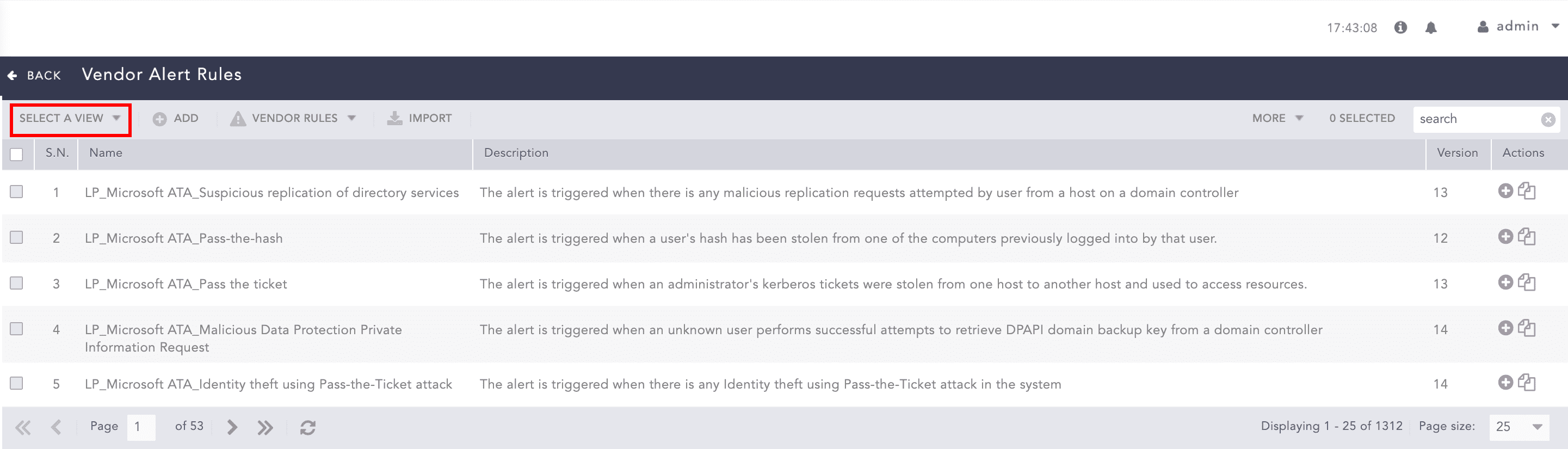
Alert Rules
Select the required view from the Select a view drop-down.
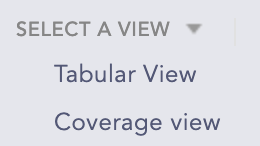
Alert Rules View Drop-down
Note
Only the alert rules under My Rules, Used Rules, Vendor Rules and used Shared Rules can be viewed from the views.
You can select the Tabular view option to display additional columns listing the Log Source, Attack Category, and Attack Tag associated with the alert rules on top of the default alert view. The Name column also features a tag to indicate the active/inactive status of the alert rule.
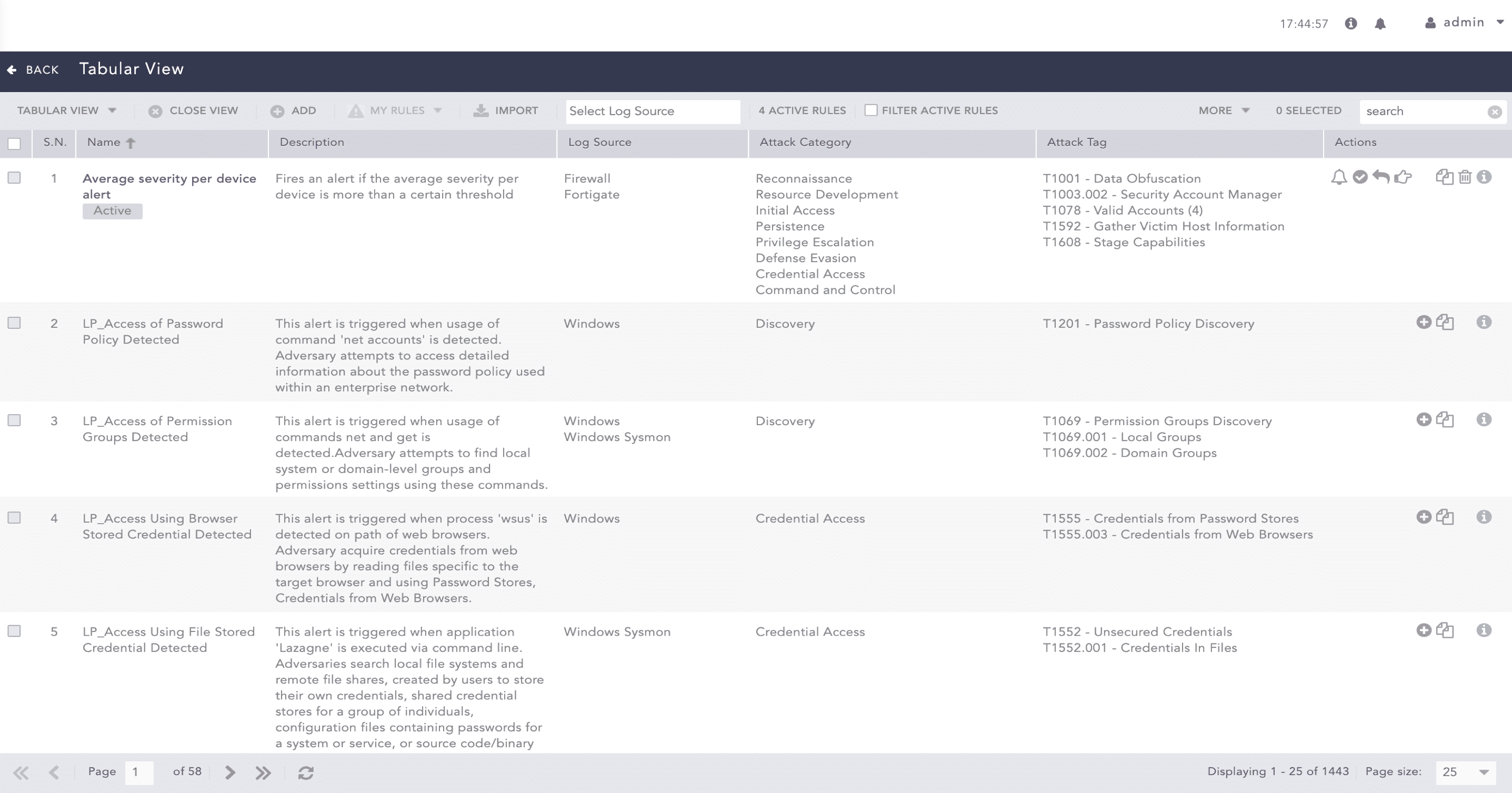
Tabular View of Alert Rules
You can select the Coverage view option to view the categorization of the alert rules based on various attack categories and attack tags associated with the attack tactics, attack techniques and, attack sub-techniques of the MITRE attack framework. The attack categories are displayed as column headers with the respective attack tags listed under. You can further drill down the attack tags.
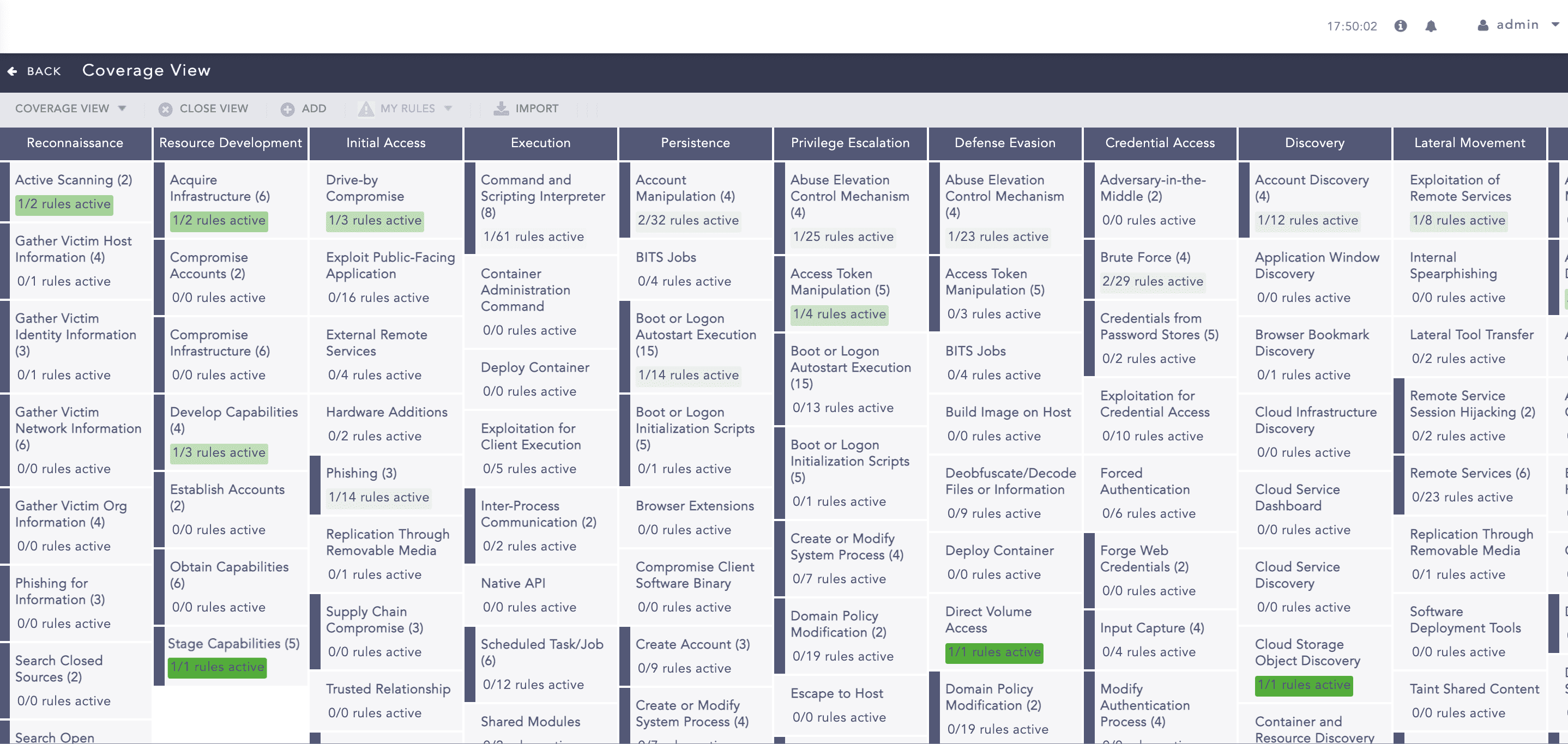
Coverage View of Alert Rules
You can click the attack tags to view the list of associated alerts rules. The alert rules are listed as similar to the tabular view.
Note
The total count of active alerts rules with respect to the total number of alert rules is highlighted in green under the attack tag.
The total count of alert rules doesn’t change when the vendor alert rules are used; however, the used vendor alerts are listed along with the vendor alert rule in the dialog box.
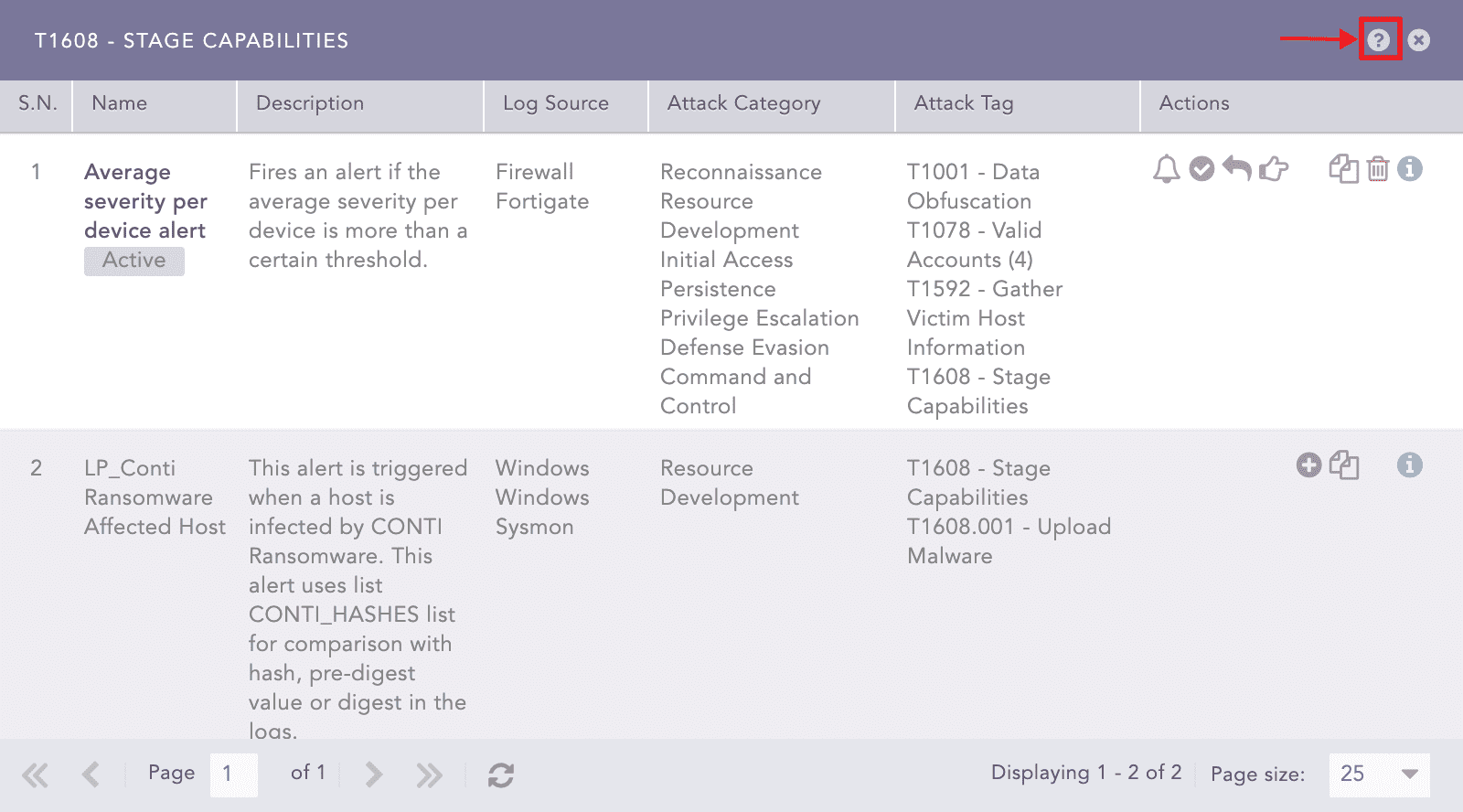
List of Alert Rules Associated with the Attack Tag
Click the help ( ) icon on the top of the dialog box to view the description of the attack tag associated with the attack techniques and sub-techniques of the MITRE attack framework.
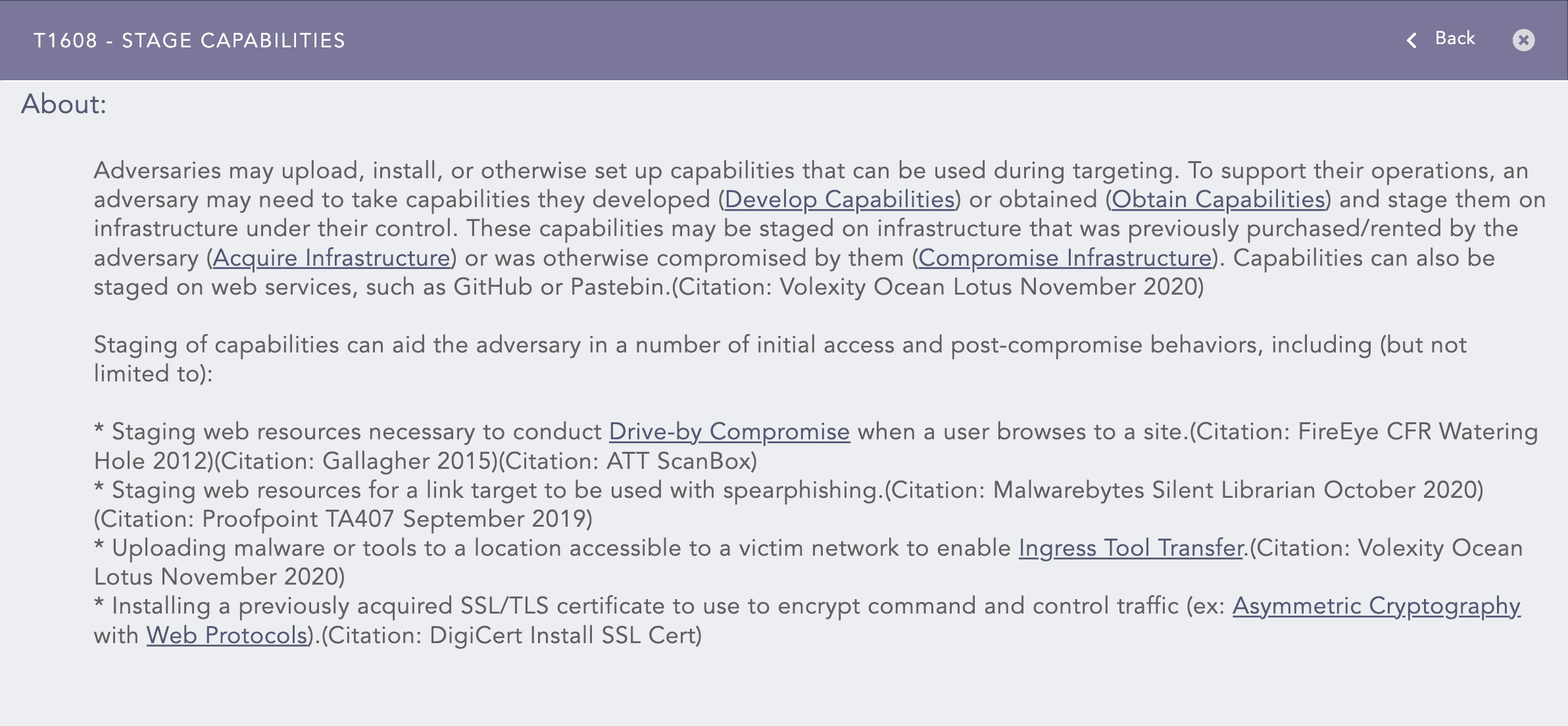
Description of the Attack Tag
The tabular/coverage view consists of an action bar allowing you to perform the following actions:
Allows you to create a new alert rule using the alert creation wizard. Refer to Creating an Alert Rule for more details.
Allows you to import alert rules from the stored location. Refer to Importing Alert Rules for more details.
Allows you to close the tabular/coverage view and return to the My Alert Rules page.
Allows you to view only the active alert rules by selecting the checkbox. This checkbox is only available for tabular view.
Allows you to filter the alert rules according to the log sources using the drop-down. The drop-down is only available for tabular view.
The More drop-down near the top-right corner of the tabular view page lists additional actions.
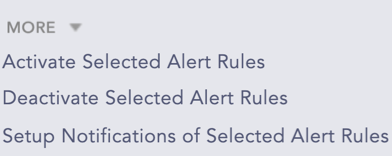
More Drop-Down
The Activate Selected Alert Rules option lets you activate multiple alert rules at once.
The Deactivate Selected Alert Rules option lets you deactivate multiple alert rules at once.
The Setup Notifications of Selected Alert Rules option lets you configure alert notification for multiple alerts at once. Refer to Setting Up Alert Notifications for more details.